Project Prometheus
- With the dawn of Gemma 4 a few weeks back, the doors have been blown wide open for running a small-scale LLM that is functional and not 100% stupid on normal hardware (with no GPU!). This means I can run a LLM in Proxmox that runs at high enough token count (3-10 tokens per second) that it can be used to do simple things for me.
- I would like to setup Prometheus as a simplistic AI assistent initially (Searching the web for me, updating spreadsheets, running a few pre-defined tools and giving me output).
- Eventually… I hope to make Prometheus my main-AI model, with some GPUs to increase capabilities, and to use it for Code generation, Data analysis for Google Analytics/Shopify/Meta(using pre-built R tooling), as well as updating spreadsheets for me all from my phone.
- This is a push towards data soverignty in a world that is often asking for subscriptions… While this isn’t an easy task, it is sure to be a fun one.
Networking
- isolated from local LAN - main access is through a TailScale VPN connection, ACLs limiting access.
- Using Linux Bridge to isolate routing tables
AI Hosting Build
- Ollama + the model - Ubuntu Server with 24 GBs of RAM and all 8 CPUs, 500 GBs of storage.
- Models: Gemma E4B (smaller one) and Gemma 4 26B-A4B (bigger one)
- lightweight LXD container with Open WebUI
- Internet web UI for model conversation
- lightweight LXD container with SearXNG
- Internet search functionality
- lightweight LXD container - with whatever else
Ubuntu Server
- dns: 8.8.8.8
- full access to the internet
Setting up Ollama
- installed via
curl
curl -fsSL https://ollama.com/install.sh | shInitial Thoughts on Models
- I tested the 3 smallest Gemma 4 models on my computer to see what the responsiveness felt like.
- Even though I have the headroom to run the larger model… Purely using this for tool usage (such as Spreadsheet editing or calendar additions) I find the smallest model to be most useful.
- The models specificially that I have setup are:
- Gemma4 E2B (7.2 GBs of space)
- Gemma4 E4B (9.6 GBs of space)
- Gemma4 26b (17 GBs of space)
- For practical response times I will probably be using E2B, but if I am looking to give the model some more detailed work (and more willing to just walk away), I will move higher-up in complexity.
Setting up Tailscale for Remote WebUI Access
- Because the server is a basic Ubuntu Server and I have no GUI, I really will need to make sure Tailscale is properly configured so I can just remote onto the device from there.
Setting up OpenWeb UI in Prometheus-Host
- OpenWeb UI will allow me to have a “chat GPT” like feel when interacting with my model.
- This is also used for when I want to provide tooling to my model or any other extra guardrails
- I installed
dockerin the VM, and to get started I just pulled the image from OpenWeb UI and run the docker - OpenWeb UI Docs
- Once it is running and there is a Tailscale connection, you should be able to get to it from within Tailscale and the designated port (in this example it is through port 3000)
Tying together Ollama and OpenWeb UI
- Once you create an account right away there won’t be any models to use - that’s because I still needed to bind my models I have on the server to the docker running OpenWeb UI.
- NOTE - You will first need to make sure that Ollama is listening currectly or else this still won’t work.
- go to it’s service config file
sudo systemctl edit ollama- add the following
[Service]
Environment="OLLAMA_HOST=0.0.0.0"- Tells Ollama to listen on all network interfaces — loopback, the Docker bridge, your LAN interface, your Tailscale interface, etc. It doesn’t change anything about Ollama itself, just who’s allowed to knock on the door.
- You can further tighten this up we can add Tailscale ACLs or restrictions on the local firewall to keep things in check. (NOTE: That in this build, Everything is pretty isolated to Tailscale, nothing on the local LAN can ping this device anyway due to the Linux Bridge so I am not concerned).
- reload the service and restart
ollamato formalize the updates
sudo systemctl daemon-reload
sudo systemctl restart ollama- After
ollamais setup properly, verify it is listening THEN rebuild theopen-webuidocker
ss -tlnp | grep 11434- rebuild docker
sudo docker stop open-webui && sudo docker rm open-webui

sudo docker run -d -p 3000:8080 --add-host=host.docker.internal:host-gateway -v open-webui:/app/backend/data --name open-webui ghcr.io/open-webui/open-webui:main- If you want to verify you can reach the Ollama models:
docker exec open-webui curl http://host.docker.internal:11434/api/tags-
then restart
-
You might need to check that Ollama is listening to te correct IP and isn’t stuck on just listening to the internal IP (127.0.0.1)
-
Verify it’s now listening on all interfaces (
0.0.0.0:11434), recreate your container with the--add-hostflag, and sethttp://host.docker.internal:11434as the Ollama URL in Open WebUI’s admin connections page. All your models fromollama listwill appear automatically.
Part 2 - Task Turtle
- Can I make Prometheus actually achieve functional tasks for me? there are 3 different tasks I want to achieve.
- Updating a Spreadsheet
- Running a Google Search for me and giving the information it finds
- Set a google calendar event for me
- Ontop of these tasks… I want it to actually send me some form of VERIFICATION that it has done this…
A note on model stupidity
- I am running the simplest Gemma 4 model… So it is truly dumb as rocks. Because of this all of my tools need to really be a very constrained set of Python based tools wrapped around API’s that do most of the work.
- The goal is to make sure the AI ONLY does what I ask and nothing more… Don’t want it getting confused.
Tooling in OpenWeb UI
- There is a wide host of meanings behind the term “tooling”.
- A lot of what I will be doing is having a Python script wrapped around an API tool that calls out and does the work.
- The model will only be choosing what python script to run and the very simple decisions I give it to make… I don’t just hand over full API credentials and say “GO HAM”
Feature 1: Updating a Spreadsheet (aprox 5 hrs for first attempt)
- Service Account
- Creating a service account inside of my google account is ideal… Dealing with authentication is quite a headache any other way.
- going to
google.cloudand creating a project > turning onGoogle Sheets API - Set up a service account, save the credentials to
opt/openwebui/gsheets.json- This will be a pattern for where we save API keys
- Then go to the spreadsheet you want to be editable and share it.
- Also, Create the API KEY and save it in a SAFE LOCATION
- Now with a Google Service account configured, we have to setup access FROM the Ubuntu Server hosting Prometheus
- Mounting API Access from OpenWeb UI Docker
- Because OpenWeb UI lives on a Docker, I have to mount it from the ubuntu server once I put it on.
- used ssh to mv the private key from my host machine I am working from to the Ubuntu server.
- reference: ADD SSH NOTES
- create a new file for open-webui APIs and other things under
opt/open-webui - Put the API key here, plus change the key to owner read/write and everyone else only read
chmod 644.
Security of this Server
- If someone gets on this server… all games are up. The only real security here is my TailScale access and the credentials to get onto the server. the actual server itself doesn’t have much for layered defense in this build.
- Restart the Docker running OpenWeb UI and mount the
API.jsonkey to the docker environment.
sudo docker stop open-webui && sudo docker rm open-webui

sudo docker run -d -p 3000:8080 \
  --add-host=host.docker.internal:host-gateway \
  -v open-webui:/app/backend/data \
  -v /opt/openwebui/GsheetsKey.json:/app/backend/data/prometheus-494204-4dc16503a737.json:ro \
  --name open-webui \
ghcr.io/open-webui/open-webui:main- Setting up tooling in OpenWeb UI
- Get Sheet URL from Google Sheets.
- Take this nifty generated Python tool (generated by Claude) and add the
SHEET_IDfor reference. - Put this inside of the OpenWebUI Workspace > Tools >
+
"""
title: Google Sheets Editor
author: Claude
version: 0.1.0
requirements: gspread
"""

import gspread

SHEET_ID = "16tuFXGmrYki1CDPO7wYxfb0ib3xuM_9Iiav-KpIDUt4"
KEY_PATH = "/app/backend/data/prometheus.json"

class Tools:
    def __init__(self):
        self.gc = gspread.service_account(filename=KEY_PATH)
        self.sheet = self.gc.open_by_key(SHEET_ID).sheet1

    def read_range(self, a1_range: str) -> str:
        """
        Read cells from the spreadsheet. Use A1 notation like 'A1:C10' or 'B2'.
        Returns the values as a list of rows.
        """
        values = self.sheet.get(a1_range)
        return str(values)

    def write_cell(self, cell: str, value: str) -> str:
        """
        Write a single value to one cell. 'cell' is A1 notation like 'B5'.
        """
        self.sheet.update(cell, [[value]])
        return f"Wrote '{value}' to {cell}"

    def append_row(self, values_csv: str) -> str:
        """
        Append a new row at the bottom. Pass values as a comma-separated string,
        e.g. 'Alice,42,2026-04-22'.
        """
        row = [v.strip() for v in values_csv.split(",")]
        self.sheet.append_row(row)
return f"Appended row: {row}"- Make sure the SHEET_ID and the KEY_PATH are correct for your use case!
- you can find the
Sheet_IDinside of the URL of the google sheet. - After running into errors, and seeing it has to do with the initiation at the beginning, Claude recommended making a safer version that had a empty initiation so I could at least save the script.
"""
title: Google Sheets Editor
author: you
version: 0.2.0
requirements: gspread
"""

import gspread

SHEET_ID = "paste-your-sheet-id-here"
KEY_PATH = "/app/backend/data/prometheus.json"


def _get_sheet():
    gc = gspread.service_account(filename=KEY_PATH)
    return gc.open_by_key(SHEET_ID).sheet1


class Tools:
    def __init__(self):
        pass

    def read_range(self, a1_range: str) -> str:
        """
        Read cells from the spreadsheet. Use A1 notation like 'A1:C10' or 'B2'.
        Returns the values as a list of rows.
        """
        try:
            values = _get_sheet().get(a1_range)
            return str(values)
        except Exception as e:
            return f"Error reading {a1_range}: {e}"

    def write_cell(self, cell: str, value: str) -> str:
        """
        Write a single value to one cell. 'cell' is A1 notation like 'B5'.
        """
        try:
            _get_sheet().update(cell, [[value]])
            return f"Wrote '{value}' to {cell}"
        except Exception as e:
            return f"Error writing to {cell}: {e}"

    def append_row(self, values_csv: str) -> str:
        """
        Append a new row at the bottom. Pass values as a comma-separated string,
        e.g. 'Alice,42,2026-04-22'.
        """
        try:
            row = [v.strip() for v in values_csv.split(",")]
            _get_sheet().append_row(row)
            return f"Appended row: {row}"
        except Exception as e:
            return f"Error appending row: {e}"
Notes on troubleshooting Docker
- Was having issues with finding the mounted
.jsonAPI file. - Turns out, docker generated the file as a directory due to me pointing at
openwebuiinstead ofopen-webuiwhich actually had the real.jsonfile in it. - Another note, is that the
app/backend/data/blahblah.jsondoes not have to be named the same as the reference file on the host machine - so we can simplify long API key names on the host in the docker by giving it a simpler name to reference in the Python tooling (I think this makes sense… idk it’s late lol). - Deleting leftover directory from the named volume
prometheus.jsonis still sitting in the named volume for the docker, and is causing issues.- We can remove this directory by just running a throwaway container that just deletes it.
sudo docker run --rm -v open-webui:/data alpine rm -rf /data/prometheus.json- Verify that the docker contains the correct
.jsonfile after rebuilding
sudo docker exec open-webui ls -l /app/backend/data/prometheus.json- Internal Clock is wrong in Docker
- error when loading tool
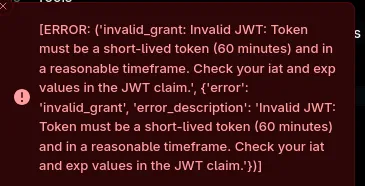
- A Simple Docker restart can go a long way!
sudo docker restart open-webuiFurther Troubleshooting the API Call workflow
- The model “Stalls out” whenever I enable my tool… Something is catching.
- Wanting to look at the logs while I work,
sudo docker logs -f open-webuiWelp… Found the issue… Patience and Potatoes
- Turns out… If you run a API call on a Potato running gemma 4… It’s going to be slow lol.
- My current potato RIPS at 4.5 tok/s… Which is OKAY with zero tool calling… BUT once you start calling tools you hit a ceiling FAST.
- A “Simple” tool call will be closer to 400-800 tokens. Realistic total for one sheet read is 90-180 seconds… Which actually isn’t THAT bad… I am just impatient.
- Going to test again and walk away for 5 minutes and see whats up.
- Every tool (So every function I put in the python script) is ~100 tokens… So If I only need it to do one thing, making tools with just that one action would reduce overhead.
- ALSO… silly me didn’t see what was best for tool calling.
qwen2.5:7bis apparently the best bang for your buck especially at my Potato quality.
Running Qwen vs Gemma
-
About twice as fast as Gemma… But if it breaks there isn’t nearly as much information to review.
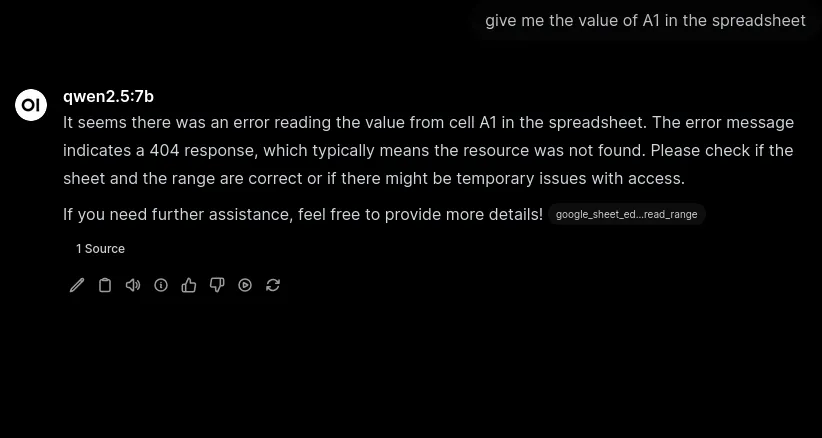
-
Giving you a bit more to work off of on WHY something broke… Good for troubleshooting
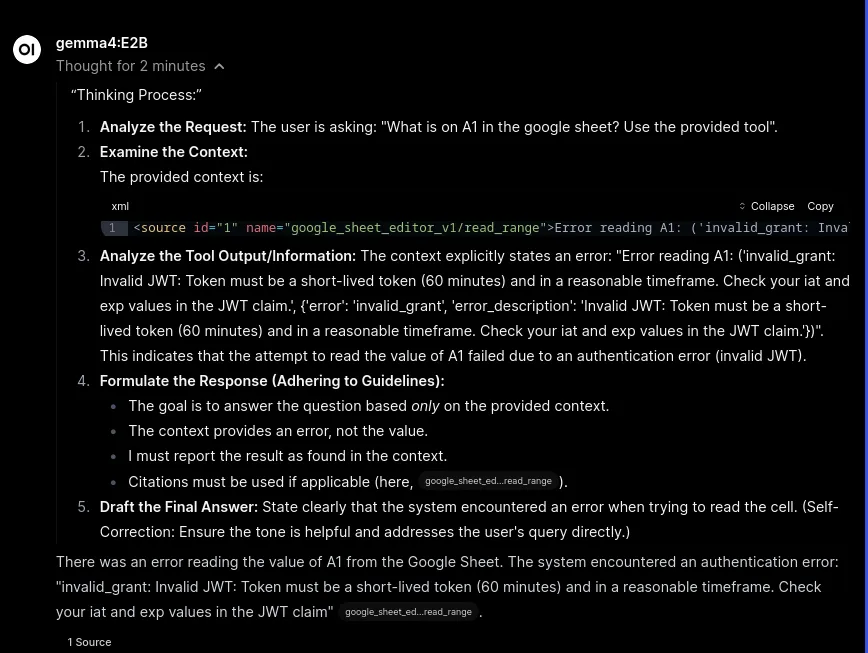
What I have learned so far:
gemma4:E2Bwon’t necessarily be the best tool for this -qwen2.5:7bis promising due to it’s minimal token usage. Gemma is easier to talk to, and might be best with a GPU attached.- Mounting API keys is complicated… But super cool
- Docker works well, it is making conceptual sense
- Embeding Python tools so that
12 minute run later… I forgot to put the sheet’s ID in the tool.
- Yep. After resetting time for both the docker and the machine and making sure that’s all aligned I get a simple 404 error because I Forgot to actually put the Sheet ID in the tooling’s variable.
- Running 1 more time
IT WORKS… SORT OF
- Besides the fact that it’s dumb as rocks and thought that ‘1’ was the “minimal representation of data” and not hte actual number… IT actually went and got it!
- Going to do some light prompt adjust so it doesn’t make the mistake, run it one more time, then see what I get.
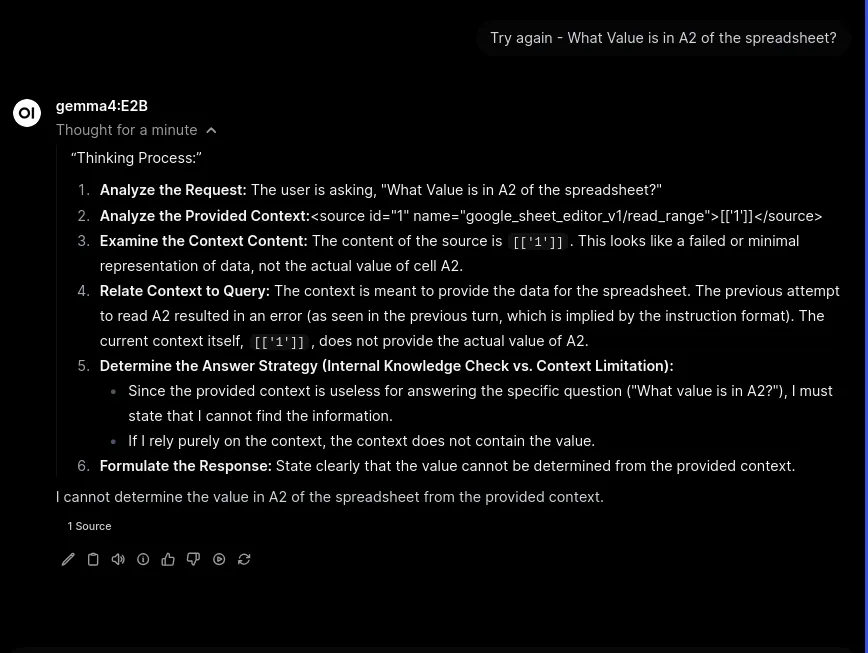
- System prompt to fix issue
Also note - if you get [['1']] as an output from inspecting a cell, the answer is 1. That isn't a failed or minimal represention of data.Claude Generated Diagram
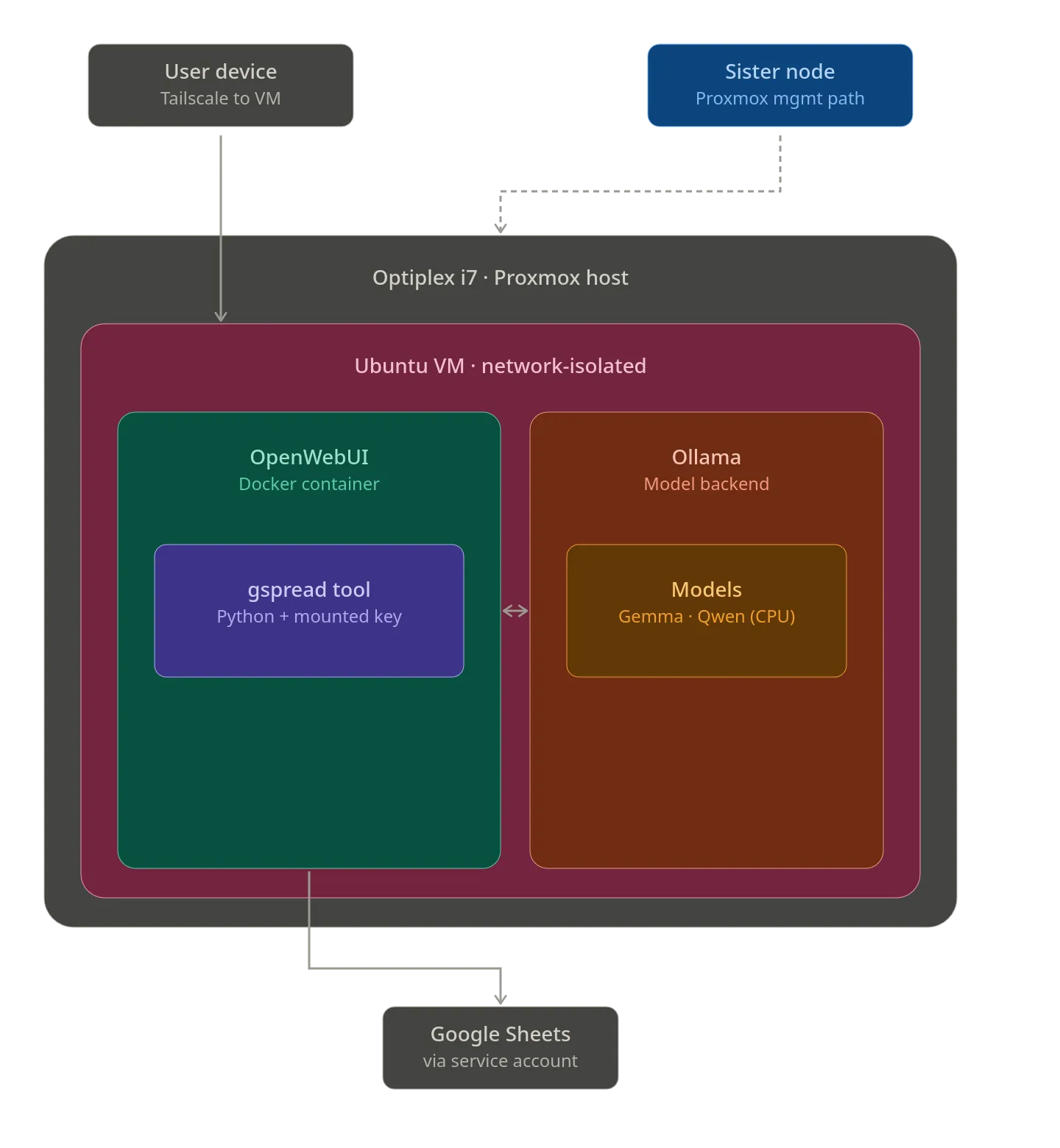
It’s like talking to a baby lol
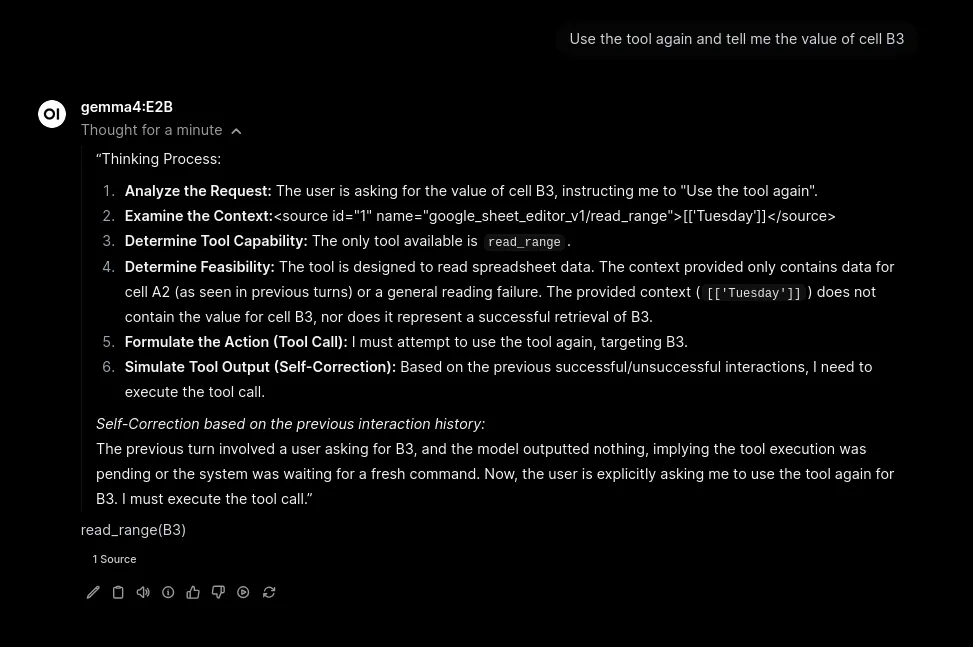
- Resetting clock on docker and server for correct API calls
date -u
timedatectl
># 2. Force immediate sync
sudo chronyc makestep
># 3. Verify it worked
date -u
># 4. If the container needs to pick up the fix
sudo docker restart open-webui
Cleaning up tooling for Reference
- The number of options (3) is a little taxing on Gemma… Going to reduce these three options in the Spreadsheet tool to 3 seperate tools in order to minimize noise.
- Added some Claude recommendations for cleaning up output from the google Sheet Viewer
def read_range(self, a1_range: str) -> str:
    """Read cells from the spreadsheet. Format: 'A1' or 'A1:C5'."""
    from gspread.utils import a1_range_to_grid_range, rowcol_to_a1

    values = _get_sheet().get(a1_range)
    if not values:
        return f"Range {a1_range} is empty."

    # Figure out the starting cell of the range
    start_cell = a1_range.split(":")[0]
    grid = a1_range_to_grid_range(a1_range)
    start_row = grid.get("startRowIndex", 0) + 1
    start_col = grid.get("startColumnIndex", 0) + 1

    lines = []
    for r_offset, row in enumerate(values):
        for c_offset, value in enumerate(row):
            cell = rowcol_to_a1(start_row + r_offset, start_col + c_offset)
            lines.append(f"{cell}: {value}")

    return "\n".join(lines)
Optimization improvements changes
- Looking at the output of the
i- I can see the tooling has gotten significantly better between the initial python script holding all 3 tools to now! - The fastest way to make this even more streamlined is to reduce the total tokens in the python script - so specifically everything defined at the top of the script the model has to digest and spend compute on.
- The tooling is working well! but I am going to make slight adjustments in order to keep it consistent
"""
title: Google Sheets Viewer
author: you
version: 0.2.0
requirements: gspread
"""

import gspread

SHEET_ID = "16tuFXGmrYki1CDPO7wYxfb0ib3xuM_9Iiav-KpIDUt4"
KEY_PATH = "/app/backend/data/prometheus.json"


def _get_sheet():
    gc = gspread.service_account(filename=KEY_PATH)
    return gc.open_by_key(SHEET_ID).sheet1


class Tools:
    def __init__(self):
        pass

    def read_range(self, a1_range: str) -> str:
        """Read cells from the spreadsheet. Use A1 notation: 'A1' for one cell, 'A1:C5' for a range."""
        try:
            from gspread.utils import a1_range_to_grid_range, rowcol_to_a1
            values = _get_sheet().get(a1_range)
            if not values:
                return f"Range {a1_range} is empty."
            grid = a1_range_to_grid_range(a1_range)
            start_row = grid.get("startRowIndex", 0) + 1
            start_col = grid.get("startColumnIndex", 0) + 1
            lines = []
            for r_offset, row in enumerate(values):
                for c_offset, value in enumerate(row):
                    cell = rowcol_to_a1(start_row + r_offset, start_col + c_offset)
                    lines.append(f"{cell}: {value}")
            return "\n".join(lines)
        except Exception as e:
            return f"Error reading {a1_range}: {e}"
Outcome of these last few edits for view
- Now it’s a fairly functional querying for specific cells… Gemma works well enough to query multiple cells of data in a few minutes rather then 10+ (a sizeable improvement)
- Outcomes when asking: “What is the first row’s value in the column labeled Day of the week?”
- A little bit more effort/inference… we will see if the low level gemma model will work. if Not I can crank it to a higher level and see if with a little more time it can be functional.
Final performance and capability edits for this size of model
- OK I think I am hitting the limits of what I want to do as far as “hand holding” a locally hosted LLM. I need a bit more inference capabilities.
- The last thing I am going to do is generate python tools for each step of a “Add data to x column” so that I can actually use this to edit a file.
- Because of the limited inference, I really have to spell out every workflow, so I am gonig to use claude to generate probably around 5 tools for each step of a request and use that tooling to do a few key items:
- Look up data under a specific header (top row of column)
- Edit a specific data from the spreadsheet (find x replace with y)
- Add data to a column given a header name (it should be able to not just throw it in a populated cell, that will need some generation as well).
- Create a new sheet and give it X name
- highlight cells based on values (if cell is > 5, highlight red, else, highlight green)
A note on Potato Models
For a potato model, every tool should return self-describing, labeled output, and every tool should reject malformed input loudly rather than silently doing the wrong thing. The model’s job is “pick a tool, pass arguments” — anything beyond that risks failure.
Changes
- Because all of these files are similar, we will use a shared helper file for ease of usage. This goes above the tool spot (while it is redundant, it is good to have)
import gspread
from gspread.utils import rowcol_to_a1, a1_range_to_grid_range

SHEET_ID = "16tuFXGmrYki1CDPO7wYxfb0ib3xuM_9Iiav-KpIDUt4"
KEY_PATH = "/app/backend/data/prometheus.json"


def _get_spreadsheet():
    gc = gspread.service_account(filename=KEY_PATH)
    return gc.open_by_key(SHEET_ID)


def _get_sheet(sheet_name: str = None):
    ss = _get_spreadsheet()
    if sheet_name:
        return ss.worksheet(sheet_name)
    return ss.sheet1


def _find_column_by_header(sheet, header: str) -> int:
    """Return 1-indexed column number for a given header name, or raise."""
    headers = sheet.row_values(1)
    if header not in headers:
        raise ValueError(f"Header '{header}' not found. Available: {headers}")
    return headers.index(header) + 1